

































Whether you want to capture a bug to send to tech support, record a snippet of gameplay, or save a quick tutorial for a family member, screen recording is one of the most useful features on your iPhone 17 Pro Max.
With the recent updates to iOS, Apple has completely revamped how the Control Center works. You no longer need to dig through the Settings app to add the screen recording shortcut—you can do it right from the Control Center itself.
Here is the exact, step-by-step method to set up and use the screen recorder on your iPhone 17 Pro Max, including how to capture your voice at the same time.
Step 1: Add the Screen Recording Button
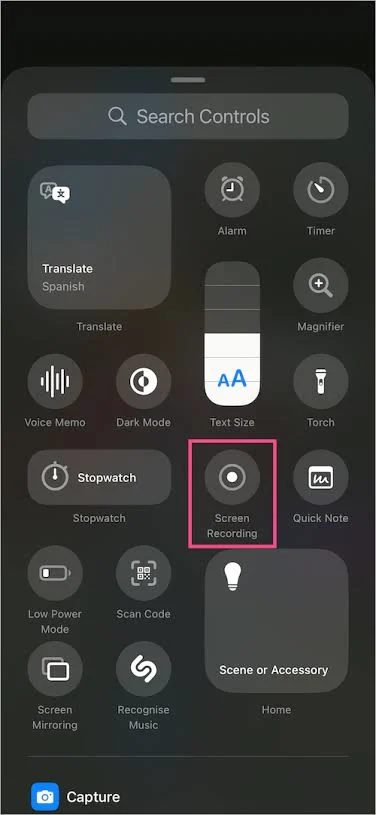
Before you can record, you need to ensure the button is easily accessible. If you don’t already see the icon (a solid circle inside a ring) when you open your Control Center, follow these steps to add it:
1.Open the Control Center:
Swipe down from the top-right corner of your iPhone 17 Pro Max screen (right over the battery icon).
2.Enter Edit Mode:
Tap and hold anywhere on the blank background space of the Control Center. The icons will jiggle, and a “+” (Add) button will appear at the top left.
3.Add a Control:
Tap Add a Control at the bottom of the screen.
4.Select Screen Recording:Use the search bar at the top if you can’t find it quickly.
Scroll through the gallery of available controls until you find Screen Recording. Tap it to add it to your Control Center.
5.Exit Edit Mode:
Tap anywhere on the blank background again to lock your layout in place. You only have to do this setup process once!
also read : – How to Use Agentic AI: A Practical Guide to Autonomous Agents in Real Workflows
Step 2: Start Recording Your Screen
Now that your button is ready, recording your screen takes just seconds.
1.Trigger the Recording:
Swipe down from the top-right corner to open the Control Center and tap the Screen Recording icon (the nested circles).
2.Wait for the Countdown: You have 3 seconds to get your screen ready.
The button will start a 3-second countdown. Use this time to swipe out of the Control Center and navigate to the app or screen you want to record.
3.Stop the Recording:
When you are finished, tap the red indicator inside the Dynamic Island at the top of your screen. A prompt will ask if you want to stop the recording. Tap Stop.
Your video is instantly saved in your Photos app under a dedicated “Screen Recordings” folder.
How to Record Your Screen with Audio (Voiceover)
By default, the iPhone screen recorder captures internal audio (like the sound of a video playing or app sound effects), but it keeps your microphone muted. If you want to narrate what you are doing, you need to toggle the microphone on.
- Swipe down from the top-right corner to open the Control Center.
- Tap and hold (long press) the Screen Recording icon.
- A new menu will pop up. Tap the Microphone icon at the bottom so it turns red and says “Microphone On.”
- Tap Start Recording from that same menu.
Pro Tip: Your iPhone will remember this setting. If you turn the microphone on, it will stay on for your next recording until you go back into this menu and turn it off.
Frequently Asked Questions (FAQ)
Why isn’t there any sound when I watch my screen recording?
If you are trying to capture your voice, your microphone is likely muted. To fix this, open the Control Center, press and hold the Screen Recording icon, and tap the microphone button to turn it on before you hit record.
Can I screen record Netflix, Hulu, or Apple TV+?
No. Streaming services use DRM (Digital Rights Management) to protect copyrighted content. If you try to screen record a movie or show on these apps, the resulting video will just show a black screen, though you might still hear the audio.
Does screen recording capture my notifications and text messages?
Yes, any banner notification that pops up on your screen while recording will be captured in the video. To avoid accidentally recording private messages, it is highly recommended to turn on Do Not Disturb or a Focus Mode before you start recording.
How long can I screen record on my iPhone 17 Pro Max?
There is no strict time limit set by Apple; it depends entirely on how much free storage space you have on your device. However, keeping recordings under 30 minutes is safer, as incredibly large files can sometimes cause the Photos app to crash while saving.
Where do I find my saved screen recordings?
Your screen recordings are automatically saved to your camera roll. Open the Photos app, tap on the Albums tab, and scroll down to the Media Types section. There you will find a dedicated folder labeled Screen Recordings.